Snap. Done. The Real Story Behind the Two-Word Headline.
Inventory apps die at item three, when typing names into a phone keyboard stops being interesting. Snap. Done. is what we built to get past it.
The headline on the second screenshot in our Play Store listing is two words: Snap. Done.
It is the kind of marketing line that looks like a bluff. Two words, a period in the middle, the gall of a verb-and-an-adjective standing in for a feature description. I've stared at it long enough to be nervous about it.
This post is the long version of those two words. Specifically: why the headline isn't "Take a Photo and Our AI Will Help You Categorize Items Across Your Inventory With 80% Accuracy." Why the cut to two syllables is the actual feature, not a copywriter's tic.
The third-item problem
The reason your last home-inventory app died unused is not that it was ugly, or expensive, or missing a feature. It died because item three killed you.
Item one is fun. You photographed your favorite mug, typed "blue mug, kitchen, top shelf", felt like a competent adult. Item two was fine. By item three you were typing "Logitech MX Master 3S Wireless Mouse" into a phone keyboard with one hand, holding the mouse in the other, second-guessing whether to type the serial, wondering if life isn't too short for this.
By item ten, you'd quit. The app sat on your phone for a month and then you uninstalled it on the day you needed the storage.
This is the actual bottleneck of every inventory tool ever shipped. Not features. Not search. Not pricing. The thirty-second psychological wall at item three, repeated across every user, in every household, in every country.
We spent more time on getting past that wall than on the rest of the app combined.
A scene from after the move
We moved apartments in March. Same neighborhood, slightly bigger place, the usual three-day blur of cardboard and tape and "where-did-we-put-the-kettle."
On the second evening I sat on the kitchen floor with a glass of something, opened a box marked KITCHEN — MISC, and started pulling things out. Whisk. Ladle. The good wooden spoon. A garlic press neither of us is sure who bought. The Microplane I'd been looking for since Christmas. A small ceramic bowl with no obvious purpose.
In the old workflow, each of those is a typed name, a chosen category, a tap on a tag dropdown. In the new one I held the phone over each item, tapped once, accepted the suggestion or fixed one word, moved to the next. The garlic press came up as "garlic press, kitchen, utensils." The Microplane came up as "grater" — close enough, I retyped one word. The mystery bowl came up as "small ceramic bowl" and I left it, because that is, in fact, what it is.
The whole box took the length of one glass of wine. Twenty-something items, none of them important enough on their own to type out, all of them important enough collectively that two months later I could type "garlic press" and know which shelf it ended up on.
That is what Snap. Done. actually is. It is not the AI. It is not the speed. It is the fact that you make it past item three because the cost per item collapsed to something a tired person on a kitchen floor will tolerate.
What the app is actually doing
The boring promise is this: the app reads what's in the photo and proposes a name, category, and tags. You accept or correct in a tap. That's the whole interaction.
Sometimes it's right on the first try. Sometimes it's broadly right ("kitchen utensil") and you sharpen it to one word ("whisk"). Sometimes it's wrong and you retype the name. The point is not that it's right every time. The point is that it gets right often enough that you don't quit on item three.
That's a softer claim than "80% accuracy" and a more honest one. What matters is whether you finish the kitchen, not whether the machine guessed correctly on any particular spatula.
A second scene: the underwear drawer before a renovation
The other place this earns its keep is right before any kind of work on your home.
We had the bathroom redone in April. The contractor warned us that the bedroom wall behind it would have to come out for two days; we needed to clear the dresser pushed up against it. Which meant emptying every drawer.
Anyone who has ever emptied a dresser drawer into a cardboard box knows the next part. You will not remember what was in it. You will not put it back the way it was. Six months later you will buy another pair of black socks because you cannot find any of the eight pairs that are definitely in this household somewhere.
So I did the drawer the new way. Tipped it onto the bed. Laid the contents out in loose piles — socks, undershirts, the one nice belt, a passport-photo envelope from 2019, a watch I forgot I owned. Held the phone over each pile, tapped through the suggestions. Eight minutes. Re-bagged everything into a single labelled bin. Put it on top of the wardrobe.
Three weeks later, looking for the watch, I typed watch into the app. Bedroom, bin 3, top of wardrobe. Walked over. Opened the bin. Done.
Two months after that, looking for a passport photo for a visa application: same loop. The drawer didn't have to be put back to its original state for the inventory to keep working. The inventory just remembered where I'd actually put things.
This is the use case that surprises people most. Not the moving-in photo session. The thirty minutes of emptying a drawer because of someone else's work in your house — and walking away with a record you'll use months later.
What "Done." actually means
The period after Done is doing some work in that headline.
It means: at the end of the tap, the item is in your inventory. You can search for it. You can find it later. You don't have a draft to review, a queue to clear, a "please confirm your 47 pending items" notification waiting for you that evening. Each snap is committed. Each snap is real. The drawer empties into the app and that's the whole loop.
If you want to refine — better photos, longer descriptions, a value for insurance — you can, later, on any item. But you don't have to. The first pass is enough. The thing exists in your inventory now.
The reason the headline is two words is that the feature is supposed to be two motions. Lift the phone, tap. The marketing is honest only if the product is also two motions. We spent the year making sure it was.
When one item is nine items
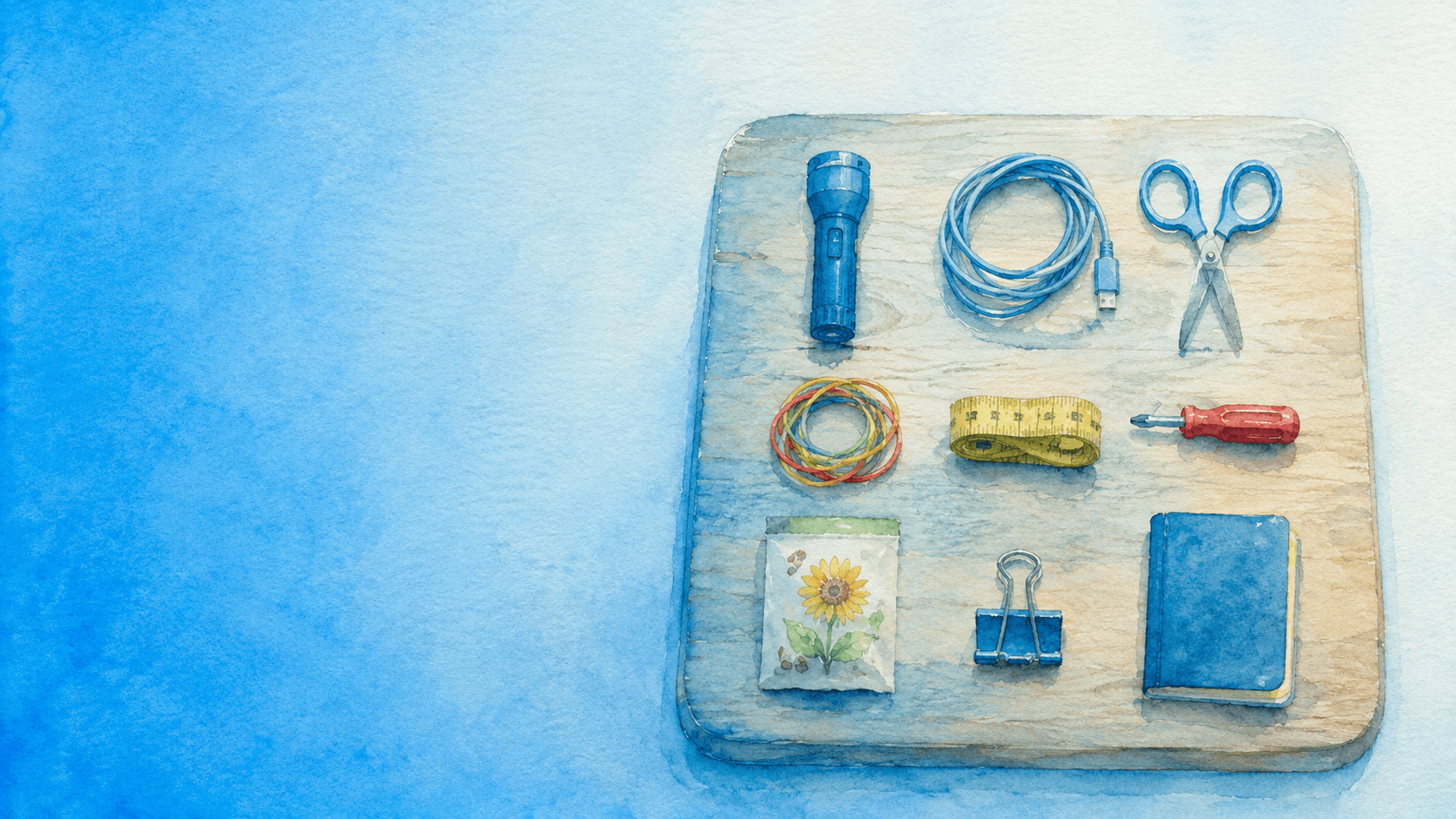
There's a sibling feature for the cases where you have a whole pile to do at once — the kitchen junk drawer, the makeup pouch before a trip, thirty small ceramics on a bedsheet for an estate sale. That's the bulk-grid camera: lay nine things on a cutting board, snap once, get nine entries.
The two flows pair: Snap. Done. for the item-by-item walk through a box; bulk grid for the dump-everything-out moments. If Snap. Done. makes sense to you, the bulk-grid post is the natural next read.
Try it on one box
The headline is a bluff if you don't try it. So: install the app, open a single moving box or a single drawer, and walk through it item by item.
If you make it to item ten without giving up, the headline is honest. If you don't, tell us where it broke; that's the part we're still fixing.
Install Inventory by AllKeep on Google Play →
Open it next to the box you've been ignoring. See if you make it to the bottom.